Microsoft Fabric for Power BI Data Analysts. Part 2: Navigation within Microsoft Fabric
Discover how to navigate Microsoft Fabric and start your free trial. Use the familiar Power BI interface for an intuitive experience.

Founder · MCT · Editor of the official DP-600 book
En resumen
How to sign in to Microsoft Fabric, start the free trial and find your way around. The interface is the Power BI one, so most of it is already familiar — what changes is the workload switcher and where each artefact lives.
- Getting in: sign in with your work account and start the trial from the account menu.
- The home page is the Power BI home you already know, with a workload switcher added at the bottom left.
- Workspace is still the unit of work — what changes is that a workspace now sits on a Fabric capacity and can hold artefacts from every workload.
- Capacity, workspace and artefact are the three concepts worth getting straight before you build anything.
In the second article, we’ll show you how to navigate this powerful platform, start your free trial, and see everything it can do. Imagine having all your data tools (data warehouses, lake warehouses, Power BI reports, etc.) in one place, with Fabric this and much more is possible.
How Do You Sign In and Start Your Trial?
-
Sign in to app.fabric.microsoft.com with your Power BI account.
-
In the Account manager you’ll see the option to start a 60-day free trial. No credit card is needed to activate it. With the trial, you will receive a capacity of 64 CU (capacity units), which you can use with any workload for the duration of the trial.
-
Once your trial capacity is ready, you will receive a confirmation message and become the Capacity administrator for that trial capacity. You’ll also see have a header for Trial status, which displays the number of days remaining in your trial.
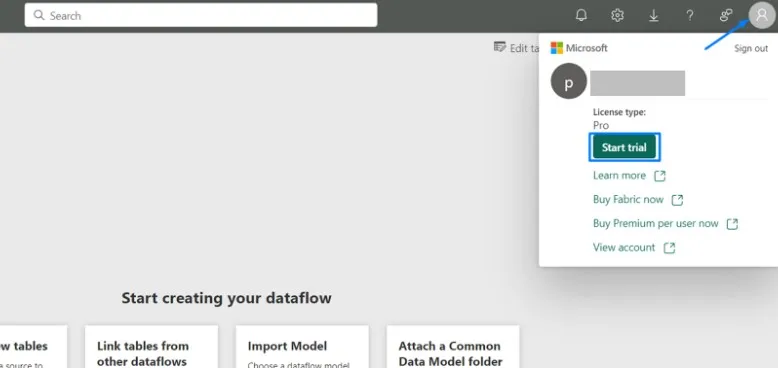
If you don’t see the Start trial button, it is possible that trials are disabled for your tenant.
More information here: Microsoft Fabric trial capacity
Microsoft Fabric Home Page
When you enter Fabric you will see a screen similar to this one:
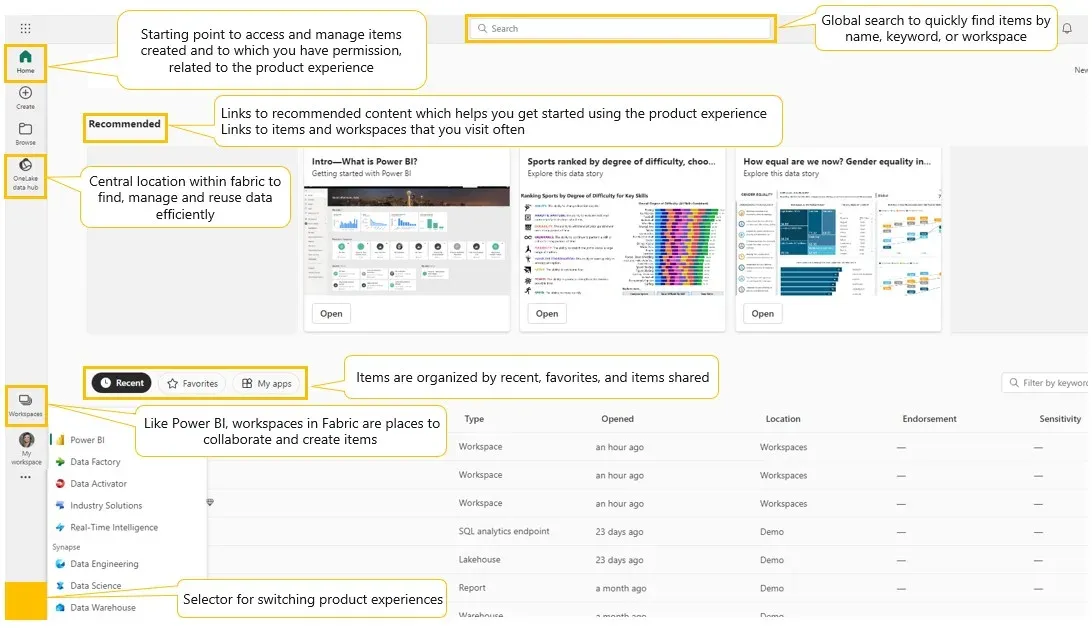
Microsoft Fabric offers an intuitive navigation system designed to improve productivity and ease of use, ensuring that all necessary resources are accessible with a few clicks.
As you can see, the interface also shares many similarities with Power BI, allowing Power BI analysts to more easily integrate their skills and workflows into Microsoft Fabric, reusing their existing expertise to maximize efficiency and collaboration within the platform.
Important Concepts
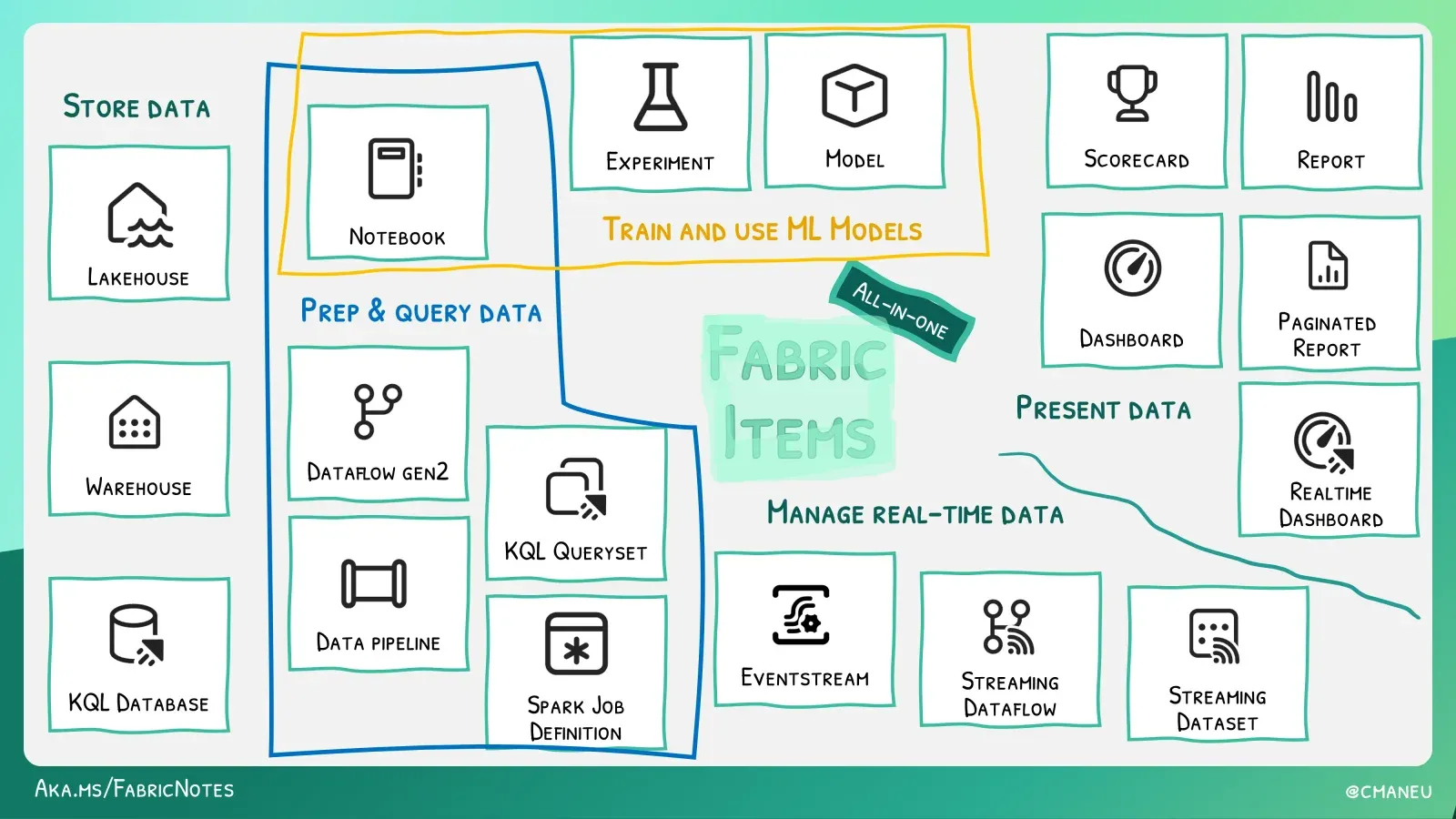
Items
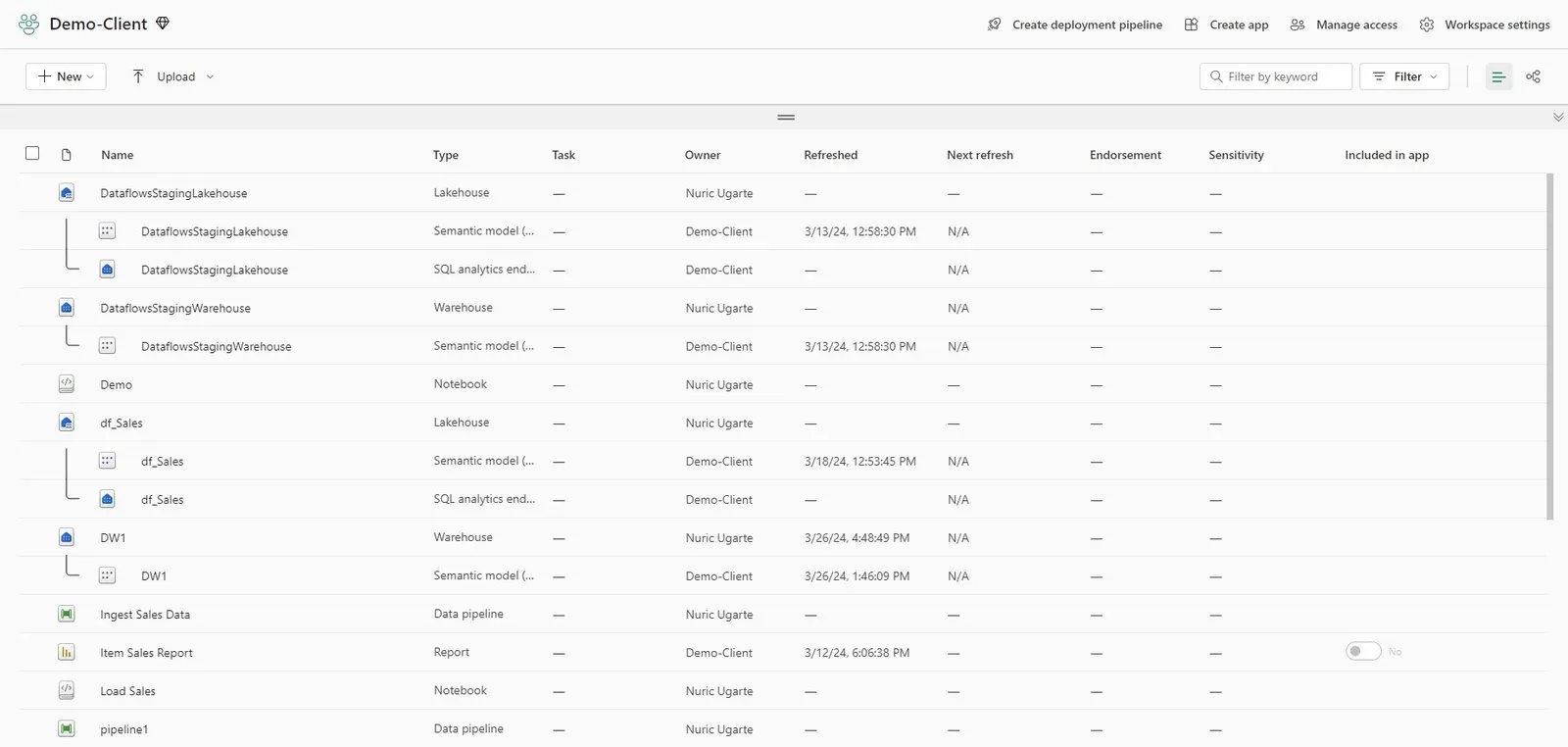
Items are the artifacts that can be created in Fabric, such as apps, lakehouses, warehouses, reports, and more. Items belong to a workspace and can be accessed by its members. Each Fabric experience allows you to create different items which we will explore in more detail below.
Fabric Workspaces
Collaborative areas for organizing items. In Fabric, workspaces host items from all experiences, not just Power BI. You can access data warehouses, lakehouses, Power BI reports, and more within workspaces.
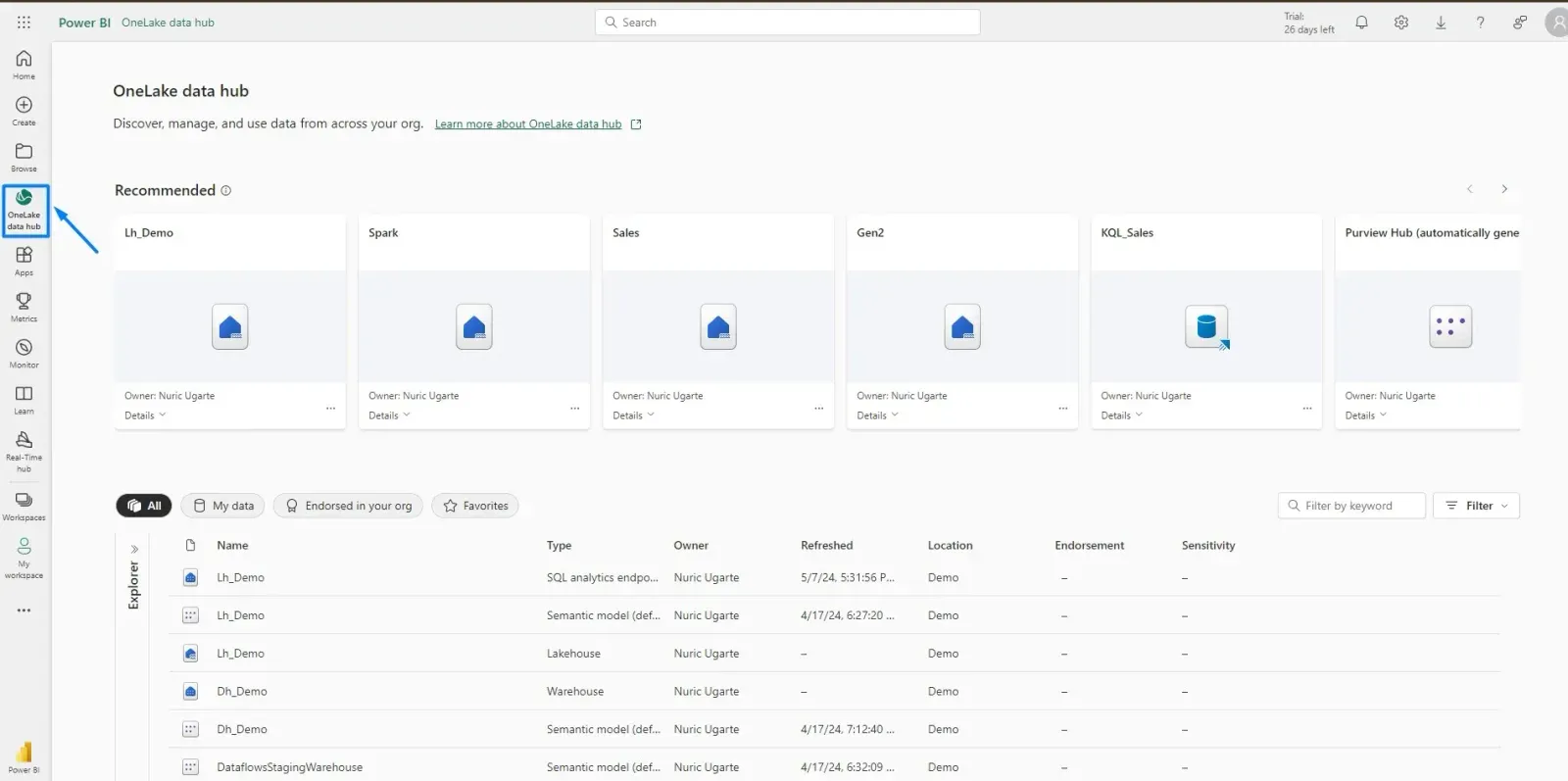
OneLake Data Hub
It’s a centralized space within Microsoft Fabric designed to enhance data discovery, exploration, and usage. It offers features like a filterable list of data items, displays data by workspace, showcases recommended items, and provides domain-specific item displays. Additionally, it includes an options menu for contextual actions such as setting management and permission handling.
The Data Hub’s structure supports efficient management and interaction with data assets, ensuring users can easily access and manipulate the data they need within a secure and governed environment.
If your team is just getting started with Fabric, our training covers this navigation hands-on, with your own tenant and data.
Published by